Folder Guard® is a powerful computer security software that you can use to control access to files, folders, and other Windows resources, such as Control Panel, Start Menu, and so on. You can use Folder Guard to lock your personal files and folders with passwords, to stop other users from peeking into your records. You can even completely hide your private folders from virtually all applications, and such folders would remain invisible until you enter a valid password. You can also protect sensitive system files from modification or destruction, disable access to the removable drives, restrict access to Control Panel, and more.
Folder Guard lets you password protect your files and folders.
You can protect with password virtually any folder or file, allowing only the authorized users to open the protected files or folders. You can protect an unlimited number of files and folders, each with its own password, or you can use the Master Password of Folder Guard to unprotect them all at once.
Folder Guard can hide your personal folders from other users.
You can set up Folder Guard to hide your private folders (or make them appear empty). The folder would be hidden from virtually any program, including Windows Explorer, Office, MS-DOS programs, etc.
Folder Guard can restrict access to Control Panel, Start Menu, Desktop, etc.
You can set up Folder Guard to allow only certain users to change the computer settings with Control Panel, while denying that to other users. You can control access to various settings of Start Menu, Desktop, Taskbar, and other Windows resources. You can remove the Run and Search commands on the Start menu, hide specific drives, lock the Internet settings, and more.
Folder Guard can protect access to the floppy, CD-ROM and other removable drives
You can configure Folder Guard to allow or deny access to the removable drives, restricting the user's ability to run or install unauthorized programs on your computer.
Folder Guard is suitable for a wide range of the computer security tasks.
You can stop other users of your computer from peeking into your personal files. You can protect the system files and folders from destruction by cyber-vandals. You can allow specific users to run a program while deny it to others. You can allow users to use the removable drives to store their documents while prevent them from running unauthorized programs from the removable disks. The possibilities are endless:
How to:
* Hide folders from prying eyes
* Hide files without encrypting them
* Lock files and folders with passwords
* Use Quick Start Wizard of Folder Guard
* Restrict access to Control Panel and other resources
* Set up user-specific restrictions
* Prevent users from installing unauthorized programs
* Prevent users from running programs from the removable disks
* Prevent users from reformatting local drives
* Disable the CANCEL button on the Windows Me/9x login window
* Restrict downloading programs from the Internet with Internet Explorer
* Restrict downloading programs from the Internet with Opera browser
Folder Guard protects your files without encrypting them.
There is no risk of losing your documents if you lose your encryption key: with Folder Guard all your files remain intact, without modification of any kind.
Folder Guard lets you quickly enable or disable the protection via a "hot key".
You can choose a specific keyboard combination as the hot key of Folder Guard, to be able to quickly enable or disable the protection of your computer. Of course, the "hot key" is protected with your password, too, only you can use it!
Folder Guard can operate in the "stealth mode".
You can set up Folder Guard to operate in the stealth mode, to hide its own files and shortcuts from being seen by other users. You would still be able to control Folder Guard via the "hot key".
Folder Guard supports easy recovery in case of emergency.
If you forget your password, or experience other problems, simply use the Emergency Recovery Utility (free download) to quickly restore access to your protected folder.
Folder Guard works with drives of any format.
If your computer can handle it, Folder Guard can protect it. You don't have to format your hard drive with the NTFS file system: Folder Guard can protect files and folders on both NTFS and FAT/FAT32 disks.
Folder Guard runs on a wide range of Windows platforms.
From Windows 2000 to Windows XP to Windows Vista and later, with all service packs and hotfixes, all are supported by at least one of the available editions of Folder Guard.
Folder Guard is easy to use.
Folder Guard sports one of the most intuitive user interfaces, that makes it easy to use for both novice users and computer professionals.
Folder Guard "speaks" plain English.
You don't have to be a computer professional to understand how to use Folder Guard. The Quick Start Wizard can guide you through the steps necessary to set up the password protection of your personal folders. Folder Guard Advisor warns you about situations that may require your attention and offers possible workarounds. Folder Guard User's Guide describes its commands and operation in plain English, without "pseudo-techno" or "geeky" talk. (And it does not baby-sit you either).
Folder Guard is not a toy.
Folder Guard is used by large corporations and small businesses, schools and police departments, universities and correctional facilities, libraries and hospitals (to name a few).
Folder Guard is widely used.
Hundreds of thousands of copies of Folder Guard have been downloaded by computer users from virtually all countries of the world.
Folder Guard offers the best value for the money.
None of our competitors offers a product that would come close to Folder Guard.
Folder Guard is flexible.
Although Windows lets you restrict access to folders located on a NTFS drives, it cannot hide them. With Folder Guard, you can not only restrict access to, but also hide folders, or make them look empty. Unlike Windows, Folder Guard lets you protect only some files within a folder, and keep the rest of the files visible and accessible, if you wish. Or, you can protect files and folders each with its own individual password, and then unlock them separately from each other (Windows cannot do that).
Folder Guard can be used with other disk tools.
You can designate your anti-virus and other disk maintenance tools to be the "trusted" programs, to make them able to work with your protected disks without restrictions.
Folder Guard is extensible.
You can fine-tune the access rules to the files and folders of your computer by creating appropriate filters.
Folder Guard will save you hours of learning time.
You don't have to learn how to use the Group Policies, user groups, Access Control Lists, privileges, and other built-in security features of Windows, because Folder Guard does the hard work for you: its visual and intuitive user interface lets you manage the restrictions with ease.
Folder Guard is actively maintained.
Since its first release back in 1997, we've been continuously extending, enhancing, and improving Folder Guard. Now in version 7.92, Folder Guard gives you more power than ever.
Wednesday, November 26, 2008
Will DirectX 10 Graphics Deliver Better Gaming?
Right now all the talk in PC gaming is DirectX 10 Graphics. New hardware and new DX10 games have everyone buzzing about a new era in PC gaming. But is all the celebration a little bit premature?
Yes and no!
As with any new technology there is a lag time before everything catches up, before the new technology is truly integrated into the old, in this case gaming systems. The big question on everyone's mind (especially gamers), how long will we have to wait before DX10 graphics delivers the goods?
In other words, how long is the lag time before performance (what you see in your games) catches up with the technology DX10 Graphics will ultimately deliver?
For the ordinary consumer who is not a techie or even a dedicated gamer, all this fuss about X10 Graphics can be downright confusing to say the least. Getting a handle on even the simplest terminology can be a challenge.
First, you have to understand DirectX is a Microsoft Windows technology that lets you have higher performance in sound and graphics when playing games and/or watching videos on your computer. In the past we have had different versions of DirectX... DirectX 8, DirectX 9, and with the introduction of Windows Vista we have DirectX 10.
DX10 Graphics gives us better performance and better looking PC graphics with clearer, higher resolution images with more shading and details. It simply means better overall picture quality and performance, a forward step to true realism in gaming.
At the heart of DirectX are APIs (Application Programming Interfaces), which can be oversimplified as a bridge or way for the hardware and the software to "talk" to each other. These give you multimedia applications such as (3-D) graphics acceleration, sound mixing and sound output and other functions.
We are now seeing higher performing DirectX 10 Graphics GPUs from top makers such as NVIDIA with their 8800 series, including the NVIDIA GeForce 8800 GTX and GeForce 8800 GTS. These GPUs (Graphics Processing Units) will give you better gaming with greater image quality and performance. HD DVD and Blu-ray video playback is even possible.
Top gaming manufacturers like Rockdirect in the UK are now all carrying DX 10 Graphics in their gaming machines. You will also find many of the major gaming specialists such as Alienware, Vigor, and Sager sporting DX 10 graphics.
Present or upcoming games that will have DirectX 10 support include Crysis, Shadowrun, World in Conflict, and Company of Heroes.
Nor should you think DirectX 10 is solely for gamers; the general PC user will also benefit from better graphics and higher performance. For instance, the ability to play and enjoy HD DVD and Blu-ray video playback on their PCs.
Perhaps one of the greatest benefits of DirectX 10 Graphics is that it makes it much more easier for game designers and developers to create games. For a more detailed discussion of the technical side of this topic, you can try Microsoft Game Developer Presentations here: http://msdn2.microsoft.com/en-us/xna/aa937787.aspx
Or you can read this very good, detailed article on "The Future of PC Gaming" by Tim Smalley presented here: http://www.bit-tech.net/hardware/2006/11/30/directx10_future_of_p c_gaming/1
The question still remains - is DirectX 10 Graphics deserving of all the hoopala or fuss?
Yes, but it will be awhile before the true benefits are fully enjoyed by gaming enthusiasts and the general public. As more DX10 games are developed and as more powerful gaming hardware become available, the full potential of better gaming will hopefully be reached.
But there may be some catching up to do before we see the real benefits. Many gamers complain that presently most hardware is more suited to DX9 Graphics. Here's a very interesting and detailed discussion of this issue done by X-bit Labs entitled: "DirectX 10 Games vs. Contemporary Graphics Accelerators" http://www.xbitlabs.com/articles/video/display/directx10-games.ht ml
Implementing any new technology takes time, as old technology is gradually replaced by the new. Just compare it to say switching from VHS to DVD and now to Blu-Ray; keeping ahead of the latest technology takes some catching up time. DX9 Graphics will eventually lose ground to DX10 Graphics.
So it may be awhile before DirectX 10 Graphics delivers the full potential of the ultimate gaming experience, but there is little doubt this technology is the future of gaming. It may just take a little while before game developers and hardware makers get all their guns locked and loaded to give you that ultimate gaming experience.
Yes and no!
As with any new technology there is a lag time before everything catches up, before the new technology is truly integrated into the old, in this case gaming systems. The big question on everyone's mind (especially gamers), how long will we have to wait before DX10 graphics delivers the goods?
In other words, how long is the lag time before performance (what you see in your games) catches up with the technology DX10 Graphics will ultimately deliver?
For the ordinary consumer who is not a techie or even a dedicated gamer, all this fuss about X10 Graphics can be downright confusing to say the least. Getting a handle on even the simplest terminology can be a challenge.
First, you have to understand DirectX is a Microsoft Windows technology that lets you have higher performance in sound and graphics when playing games and/or watching videos on your computer. In the past we have had different versions of DirectX... DirectX 8, DirectX 9, and with the introduction of Windows Vista we have DirectX 10.
DX10 Graphics gives us better performance and better looking PC graphics with clearer, higher resolution images with more shading and details. It simply means better overall picture quality and performance, a forward step to true realism in gaming.
At the heart of DirectX are APIs (Application Programming Interfaces), which can be oversimplified as a bridge or way for the hardware and the software to "talk" to each other. These give you multimedia applications such as (3-D) graphics acceleration, sound mixing and sound output and other functions.
We are now seeing higher performing DirectX 10 Graphics GPUs from top makers such as NVIDIA with their 8800 series, including the NVIDIA GeForce 8800 GTX and GeForce 8800 GTS. These GPUs (Graphics Processing Units) will give you better gaming with greater image quality and performance. HD DVD and Blu-ray video playback is even possible.
Top gaming manufacturers like Rockdirect in the UK are now all carrying DX 10 Graphics in their gaming machines. You will also find many of the major gaming specialists such as Alienware, Vigor, and Sager sporting DX 10 graphics.
Present or upcoming games that will have DirectX 10 support include Crysis, Shadowrun, World in Conflict, and Company of Heroes.
Nor should you think DirectX 10 is solely for gamers; the general PC user will also benefit from better graphics and higher performance. For instance, the ability to play and enjoy HD DVD and Blu-ray video playback on their PCs.
Perhaps one of the greatest benefits of DirectX 10 Graphics is that it makes it much more easier for game designers and developers to create games. For a more detailed discussion of the technical side of this topic, you can try Microsoft Game Developer Presentations here: http://msdn2.microsoft.com/en-us/xna/aa937787.aspx
Or you can read this very good, detailed article on "The Future of PC Gaming" by Tim Smalley presented here: http://www.bit-tech.net/hardware/2006/11/30/directx10_future_of_p c_gaming/1
The question still remains - is DirectX 10 Graphics deserving of all the hoopala or fuss?
Yes, but it will be awhile before the true benefits are fully enjoyed by gaming enthusiasts and the general public. As more DX10 games are developed and as more powerful gaming hardware become available, the full potential of better gaming will hopefully be reached.
But there may be some catching up to do before we see the real benefits. Many gamers complain that presently most hardware is more suited to DX9 Graphics. Here's a very interesting and detailed discussion of this issue done by X-bit Labs entitled: "DirectX 10 Games vs. Contemporary Graphics Accelerators" http://www.xbitlabs.com/articles/video/display/directx10-games.ht ml
Implementing any new technology takes time, as old technology is gradually replaced by the new. Just compare it to say switching from VHS to DVD and now to Blu-Ray; keeping ahead of the latest technology takes some catching up time. DX9 Graphics will eventually lose ground to DX10 Graphics.
So it may be awhile before DirectX 10 Graphics delivers the full potential of the ultimate gaming experience, but there is little doubt this technology is the future of gaming. It may just take a little while before game developers and hardware makers get all their guns locked and loaded to give you that ultimate gaming experience.
Acquaint Yourself With Computer Printers
A computer printer is a device used for printing text or images on hard copy stored in electronic form, generally on physical print media like paper. Printers are designed to support both local and network connected users simultaneously.
Nowadays, modern printers can directly interface to electronic devices like digital cameras. Some printers that come with non printing features are commonly known as Multi-Functional Printers (MFP) or Multi-Function Devices (MFD). It integrates various functions of multiple devices into one. Such types of printers are extremely useful for small businesses and home offices.
As opposed to a traditional printer, a multi-functional printer is a combination of devices like Printer, Scanner, Photocopier, and Fax Machine. Likewise, there are numerous other types of printers widely available in the market. Let’s take a look at them:
Laser Printer: A laser printer works in a similar fashion as a photocopier does. It has a roller which is charged with electricity. A laser beam is passed to remove the charge from portions of the roller. The parts hit by the laser are powdered by the toner which is then transferred from the roller to the paper. Finally, the ink is baked into the paper with the help of a heater incorporated in the printer. People generally prefer laser printer because of its ability to give high quality output and high speed.
Dot Matrix: It has a print head that moves across the page. A dot matrix printer produces characters using a cluster of pins which press an inked ribbon to the paper, thereby creating a dot. Each character is made in the same way. Dot Matrix printers are relatively cheaper and durable. These qualities still attract businesses which use them as invoice printers.
Ink Jet and Bubble Jet: It works in a manner similar to a Dot Matrix Printer. However, its print head sprays liquid ink onto the page instead of pressing a dry ink against the page. Ink jet and bubble jet printers are better known as predecessors of laser printers. They produce better image quality and run faster.
From inkjets to monochrome and color lasers, different printers are designed to accomplish different tasks. Companies like DELL, CANON, LEXMARK, BROTHER, EPSON, and HP HEWLETT PACKARD are most preferred when it comes to buying a printer. Nowadays, computer printer support is widely available on the Internet which saves you from taking it to any expensive technician for troubleshooting.
Nowadays, modern printers can directly interface to electronic devices like digital cameras. Some printers that come with non printing features are commonly known as Multi-Functional Printers (MFP) or Multi-Function Devices (MFD). It integrates various functions of multiple devices into one. Such types of printers are extremely useful for small businesses and home offices.
As opposed to a traditional printer, a multi-functional printer is a combination of devices like Printer, Scanner, Photocopier, and Fax Machine. Likewise, there are numerous other types of printers widely available in the market. Let’s take a look at them:
Laser Printer: A laser printer works in a similar fashion as a photocopier does. It has a roller which is charged with electricity. A laser beam is passed to remove the charge from portions of the roller. The parts hit by the laser are powdered by the toner which is then transferred from the roller to the paper. Finally, the ink is baked into the paper with the help of a heater incorporated in the printer. People generally prefer laser printer because of its ability to give high quality output and high speed.
Dot Matrix: It has a print head that moves across the page. A dot matrix printer produces characters using a cluster of pins which press an inked ribbon to the paper, thereby creating a dot. Each character is made in the same way. Dot Matrix printers are relatively cheaper and durable. These qualities still attract businesses which use them as invoice printers.
Ink Jet and Bubble Jet: It works in a manner similar to a Dot Matrix Printer. However, its print head sprays liquid ink onto the page instead of pressing a dry ink against the page. Ink jet and bubble jet printers are better known as predecessors of laser printers. They produce better image quality and run faster.
From inkjets to monochrome and color lasers, different printers are designed to accomplish different tasks. Companies like DELL, CANON, LEXMARK, BROTHER, EPSON, and HP HEWLETT PACKARD are most preferred when it comes to buying a printer. Nowadays, computer printer support is widely available on the Internet which saves you from taking it to any expensive technician for troubleshooting.
How To Troubleshoot Your Computer Hardware
There could be many reasons why you’d want to troubleshoot your computer, well, one actually and that’s because something is not working right. The process of troubleshooting is something you learn after working for a long time with computers. Often enough when there’s a problem, nothing is going to explicitly tell you what is causing the problem and how you can fix it. By taking logical steps and walking through the process of troubleshooting you should be able to solve almost any computer problem, software or hardware related. It involves identifying the problem(s), finding the cause of that problem, determining the solution, executing that solution, and testing and checking that solution to see if it solves your problem.
As an example let’s say one day while using your computer the screen suddenly turns all black and you can’t see anything. We found a problem now what would be the first step to take to fix it? First check to see if the monitor is on and is receiving power, most monitors when they have power, but no connection or connection problems with the computer will display a message that says this monitor is working, but make sure you check your cables. So the next logical step to take would be to check the cable to make sure it is properly connected and secured to the VGA slot behind your computer case and to make sure the monitor cable is plugged into the monitor. Now, here’s where you have to decide what would be the next best course of action to take. you could either swap out your monitor with another monitor that you know is working to see if the problem is the monitor itself and nothing else or you can try to see if the problem is your graphics card. If your replacement monitor works, good, then you know your culprit is a bad monitor and you’ll most likely have to get a new one, because monitors are dangerous and too costly service. If the replacement monitor you used shows up a black screen as well, the next thing you’d do is check to make sure the graphics card is properly seated in the motherboard, if it is and the display is still not showing up, then swap out the graphics card to see if your problem is fixed.
Generally there are only so many steps you can take before you solve the problem and everything is back in order. Make sure that before you start testing and swapping out parts that the problem wasn’t caused by you changing a software setting in Windows or some ambiguous option in the motherboard’s BIOS that causes your problem.
Motherboard
The motherboard is the heart of the computer, every part of the computer relies on the motherboard to function correctly. It maintains connection between every PC component and ensures that things are operating smoothly between them. Many signs of motherboard failure is that the computer won't boot up, not reaching the POST test, erratic system behavior, different combinations of components not working. Because everything is connected to the motherboard certain parts may or may not work correctly if the motherboard is faulty so be sure to test those parts before thinking they're dead and getting new ones.
Be sure to do a visual inspection of the motherboard to make sure all cables are seated properly, the fans are spinning, and that the CMOS battery is in it's proper place.
Also check for any broken or leaking capacitors, those can immediately render a motherboard dead.
Make sure that all of the jumpers are set correctly as well, you should be able to find jumper information in your motherboard's manual, and if you don't have the manual you should be able to find the manual on the Internet at the motherboard manufacturer's website.
Many of the problems caused by a bad motherboard is also similar to problems caused by a faulty or dying power supply, so be sure to check if the power supply is faulty or swap it out for another to see if your problem is fixed. If you have a spare motherboard you can try swapping out the motherboard to see if that solves your problem, if that's the case then the motherboard is most likely faulty. If you think the motherboard is faulty and it is still in warranty you should be able to send it back to the manufacturer for a new one with no hassle, sometimes they might even pay for the shipping & handling if it is a big problem that is happening with a certain line of motherboards. Make sure that when you open a motherboard you keep all of the packaging and the box, and if there are any stickers that will void the warranty if removed make sure you do NOT remove them, so that way it is easier to send back.
Power Supply
If you suspect your power supply is giving you trouble, make sure you check it out fast, because power supplies can make trouble with the rest of your system as well. Irregular voltages sent from the power supply can short circuit and overheat your components thus frying them and making them unusable. Some faulty power supplies have even caught on fire, but if you’re lucky it might just smoke a little and start to smell. A few signals that your power supply is bad or is going bad would be erratic and seemingly random system behavior like system hangs and crashes, and burning smells along with smoke.
If you recently upgraded your system or added new hard drives, disk drives, a graphics card or anything for that matter, be sure to check if your power supply is being overloaded with hardware. A good way to check is to use a power supply calculator. One time when I upgraded my system with a new fancy PCI Express 16x Graphics card, well it was fancy back then, I had problems with the graphics card performing while in 3d games, it was all due to my power supply being unable give it enough juice on the 12v rails so it performed poorly and didn’t act as it should have, I even swapped out the graphics card for another one believing it was bad, after checking the manufacturer’s forums it seemed like a lot of people were having problems with faulty cards, so I figured mine must have been faulty too. After getting the new card it seemed like it performed better for a little bit longer, which could’ve just been some optimizations they did to circuit board. Seeing how they sent me an upgraded version of the same card, but it wasn’t until I checked my power supply wattages that I found the real culprit.
The first thing to do to diagnose your power supply is check the power supply connectors, make sure everything is plugged into the motherboard and the power cable is plugged into the power supply, you wouldn’t believe how many people forget to plug in their computer. Many power supplies also have a power switch on them so check to make sure that no one accidentally or purposefully switched it off maybe for a prank. Check the fan to see if it is spinning at the correct speed and if it’s dusty vacuum it out. Determine if the power supply cables are giving out the right amount of voltage, if you computer will let you boot you should be able to check them in the BIOS menu to see if the correct voltages are being given. Normal power supplies give +3.3 volts DC, +5 volts DC, -5 volts DC, +12 volts DC, and -12 volts DC.
Memory
Faulty RAM can have many adverse effects on your system. Constant lockups, computer rebooting, memory error message (duh), system crashes, and sometimes refusing to boot up are all signs of memory errors. Though, these are also signs for motherboard, hard drive, and power supply problems too. Luckily for you if you think your memory is subject to causing a disruption in your system there are programs that can check the memory for it's performance and to see if it is generating any errors.
Memtest86+ is an amazing memory diagnostic program. It is based off of the original Memtest86 that has been around since 1994 and is used by system-builders, average joes, and professionals in the IT world. It's a standalone memory check test which means it can be easily run without a bootable operating system, that's good if you can't just seem to get your PC started and want to rule out your memory as quickly as possible.
How To Use Memtest86 With Your Floppy Drive To Test Your Memory
First go their website at www.memtest.org and select the most appropriate version to download. You can download the bootable iso or the Pre-compiled floppy drive depending on whether you want burn a CD or use your floppy drive. We're going to go into details on floppy method.
Open up the .zip and extract the files to a folder, then click on install.bat, you will be asked to “Enter target diskette drive:”. Type A and hit enter then it will ask you to insert a formatted diskette into drive A: and press -Enter-: after you hit enter it will write some files to your floppy so you can boot your computer with the floppy to test for errors.
After the floppy has been formatted with Memtest86+, leave the floppy in your floppy drive and reboot your computer. Remember to set your floppy drive as the first boot device in your BIOS menu.
The program will automatically load and perform the memory diagnostic tests on your computer. During the testing if there any errors they will show up and at the end of the test it will tell you how many errors you've had.
After testing your memory if you receive any errors you should make sure that your memory is okay either by swapping it out and seeing the problems still occur or try your memory in another system. If the memory passes the tests then you proceed to troubleshoot something else with good faith that your memory is fine.
Hard Drive
The hard drive is that ultimate safe to everything important on your computer. It keeps all of your information, files and folders, music, videos, favorite websites, and programs. With a bad hard drive there's no reason to have a computer. In terms of fixing a computer if the hard drive isn't salvageable then most people don't even want to bother with the rest, because their computer is probably a piece of junk that has been handed down from time to time. Generally when a hard drive is about to fail it's usually years down the road from first acquiring the computer. So the next best option rather than replacing the drive is to just buy a new computer, or build a new one, because your old one sure is probably not running as fast as it used to.
Luckily before your hard drive kicks the bucket there is usually a few warning signs:
Abnormally slow file transfers
Problems with booting, especially when Windows is being loaded
Corrupted files
Disappearing files or folders
Loud hard drive noise is a good sign that there is a mechanical problem going on inside
If your hard drive exhibits any of these signs be sure to transfer all of your files to another source immediately, and do not continue to do day-to-day activities with that hard drive. If it doesn't show any of these tell-tale signs, however you have a gut feeling that your hard drive is on the brink of destruction you can try using many different drive testing utilities available on the internet. The hard drive manufacturer usually has at least one qualified tool that you can download from their website and run. Other ways to check the health of your hard drive involves running the Windows Error Checking tool by right clicking on your hard drive in 'My Computer' then selecting 'Properties' and going to the 'Tool' and clicking on “Check Now”, or checking the SMART status located in your motherboard's BIOS. SMART stands for Self-Monitoring, Analysis and Reporting Technology. Most motherboards nowadays has this technology. It should be automatically enabled in your BIOS, if it's not then your hard drive won't get checked. What it does is on boot up it will perform quick tests on your hard drive to ensure it is running correctly and it will continue to monitor it for any errors or abnormal problems that may occur as long as the computer is turned on.
Monitor
Watching movies, videos, playing games, and looking at NSFW material are all amazing things we can do on our computers. Yet there may come a day where you just want to get on your computer and relax in your computer room looking at all that NSFW material you have bookmarked under the “Special Sites” category, but you can’t because your monitor won’t turn on. No, you don’t frump and punch holes in the walls to look for an outlet for your rage. You troubleshoot it, and hope to god that your monitor isn’t broken!
When diagnosing a screen problem, half the time it’s usually something very easy, like a cable coming loose, or the monitor getting unplugged accidentally; unfortunately the other half the time it’s probably a problem that’s related to your monitor being old, or a problem that’s related to your graphics card instead. So you may have to diagnose both items at the same time to see which solves your problem.
First, check all your cables, I know this is probably getting a little old with the checking connections and everything, but so many computer problems can be avoided if people just remember that their computer isn’t always going to stay the same way they left it. A foot could kick out a cable, a dog or a cat that got to curious, or almost anything can render half your hardware useless.
After checking all your cables, make sure your screen has power, if it has power and shows a message such as “This monitor is working correctly please check your cable” and shows bars of color on the screen, that means that your monitor is not getting a signal from your computer. Try swapping out the monitor for another one to see if it still says that message. If it does then that means the problem is most likely something to do with your graphics card not seated in the motherboard, or just isn’t working properly, you may want to try swapping out another graphics card to see if that solves your problem.
Generally monitors don’t have that many diagnosable problems. Either they work and they work well, or they don’t work and you have to replace them. When working on a monitor you should never open them, they aren’t meant to be serviced and contain high charged capacitors that hold lethal doses of electricity. We wouldn’t want to read about a computer guy in the obituaries now would we?
Graphics Card
The glorious graphics card, it’s an amazing thing really. It makes all those pretty HDR (High Dynamic Range) pictures look just that good, it keeps your games running smoothly, and your videos in HD. Yet these things can be pains when they’re just not working right, because if something is wrong there’s not a strict hardware or software solution, you have to analyze the current situation to see what’s up.
First and foremost if you’re having any problems with your graphics card, probably the best thing to try to do first is see if there an updated driver for it at the manufacturer’s website that may solve the problem, or if there isn’t an update try uninstalling your graphics drivers and reinstalling them this little action can solve so many problems.
If there’s little jaggies or weird colorful mishaps known as artifacts appearing on your screen you may want to check the temperature of your graphics and make sure is getting enough cooling, and that the fan is working properly. If the cooling checks out okay you may also want to check your power supply ratings to see if it is giving enough juice to your graphics card. Nowadays most graphics cards need a lot of power on the 12v rails, make sure your power supply can give you that power that the graphics card needs.
Sound Card
Some of the typical problems people have with sound cards is either A) no sound or B) no sound. Sounds card typically aren't very expensive so having to replace one if the current one isn't working is no big deal. However, if you're one of those audiophile types who expect 100% original recording quality with your $300 sound card replacing one of those is as expected a lot more harder to do.
Sound Card Troubleshooting
Check speaker cables make sure they're all connected and plugged into the right spot on your sound card. Also check the speaker's power cables.
Make sure windows volume is turned up and the volume is not muted, also make sure that you have all the wave and playback volume turned up and not muted. If you have 'Digital Output Only' checked in your Advanced Controls for Playback Controls, try unchecking it to see if that solves your non-sound problem. I found that if I have that checked my sound card won't give me any sound.
Try reinstalling your sound card drivers, also try checking on the internet at the manufacturer's website for any updated drivers that may be available. They increase your sound card's compatibility with your system.
If the previous tips didn't help, then you may just have to replace your sound card, or atleast swap it out for another one to see if it might be a problem related to your sound card's connection to the motherboard instead.
Processor
The processor is the actual thinking part of the brain of the computer. It does all the calculations needed to make a computer run, and does them all in split second timing. It determines how fast your computer generally runs, and most of the time is a bottle neck for systems that have had everything upgraded except the CPU.
If your processor’s not working, it’s not the end of the world, generally most processors that work correctly for a few weeks, should work correctly for the rest of it’s lifespan, which varies from 5-10 years or so. As long as you’re not overclocking the processor or letting it overheat too badly your processor should be fine, and it could just be a BIOS setting that’s messed up, or a jumper setting, but for kicks just check to make the processor is seated properly and the heat sink is attached to the processor and the motherboard. The heat sink should be attached tightly to the motherboard and not have room to move about, you should be able to pick up your motherboard by grabbing onto the heat sink without any problems. Check in your motherboard manual to make sure all the jumpers are set correctly for your type of processor. Any jumpers set incorrectly can cause the processor to not work, or function correctly or at it’s optimal speed. Also check the heat sink to see if it is cooling off the processor, if it’s not doing a very good job you may want to look into investing in a better one that gets the job done.
As an example let’s say one day while using your computer the screen suddenly turns all black and you can’t see anything. We found a problem now what would be the first step to take to fix it? First check to see if the monitor is on and is receiving power, most monitors when they have power, but no connection or connection problems with the computer will display a message that says this monitor is working, but make sure you check your cables. So the next logical step to take would be to check the cable to make sure it is properly connected and secured to the VGA slot behind your computer case and to make sure the monitor cable is plugged into the monitor. Now, here’s where you have to decide what would be the next best course of action to take. you could either swap out your monitor with another monitor that you know is working to see if the problem is the monitor itself and nothing else or you can try to see if the problem is your graphics card. If your replacement monitor works, good, then you know your culprit is a bad monitor and you’ll most likely have to get a new one, because monitors are dangerous and too costly service. If the replacement monitor you used shows up a black screen as well, the next thing you’d do is check to make sure the graphics card is properly seated in the motherboard, if it is and the display is still not showing up, then swap out the graphics card to see if your problem is fixed.
Generally there are only so many steps you can take before you solve the problem and everything is back in order. Make sure that before you start testing and swapping out parts that the problem wasn’t caused by you changing a software setting in Windows or some ambiguous option in the motherboard’s BIOS that causes your problem.
Motherboard
The motherboard is the heart of the computer, every part of the computer relies on the motherboard to function correctly. It maintains connection between every PC component and ensures that things are operating smoothly between them. Many signs of motherboard failure is that the computer won't boot up, not reaching the POST test, erratic system behavior, different combinations of components not working. Because everything is connected to the motherboard certain parts may or may not work correctly if the motherboard is faulty so be sure to test those parts before thinking they're dead and getting new ones.
Be sure to do a visual inspection of the motherboard to make sure all cables are seated properly, the fans are spinning, and that the CMOS battery is in it's proper place.
Also check for any broken or leaking capacitors, those can immediately render a motherboard dead.
Make sure that all of the jumpers are set correctly as well, you should be able to find jumper information in your motherboard's manual, and if you don't have the manual you should be able to find the manual on the Internet at the motherboard manufacturer's website.
Many of the problems caused by a bad motherboard is also similar to problems caused by a faulty or dying power supply, so be sure to check if the power supply is faulty or swap it out for another to see if your problem is fixed. If you have a spare motherboard you can try swapping out the motherboard to see if that solves your problem, if that's the case then the motherboard is most likely faulty. If you think the motherboard is faulty and it is still in warranty you should be able to send it back to the manufacturer for a new one with no hassle, sometimes they might even pay for the shipping & handling if it is a big problem that is happening with a certain line of motherboards. Make sure that when you open a motherboard you keep all of the packaging and the box, and if there are any stickers that will void the warranty if removed make sure you do NOT remove them, so that way it is easier to send back.
Power Supply
If you suspect your power supply is giving you trouble, make sure you check it out fast, because power supplies can make trouble with the rest of your system as well. Irregular voltages sent from the power supply can short circuit and overheat your components thus frying them and making them unusable. Some faulty power supplies have even caught on fire, but if you’re lucky it might just smoke a little and start to smell. A few signals that your power supply is bad or is going bad would be erratic and seemingly random system behavior like system hangs and crashes, and burning smells along with smoke.
If you recently upgraded your system or added new hard drives, disk drives, a graphics card or anything for that matter, be sure to check if your power supply is being overloaded with hardware. A good way to check is to use a power supply calculator. One time when I upgraded my system with a new fancy PCI Express 16x Graphics card, well it was fancy back then, I had problems with the graphics card performing while in 3d games, it was all due to my power supply being unable give it enough juice on the 12v rails so it performed poorly and didn’t act as it should have, I even swapped out the graphics card for another one believing it was bad, after checking the manufacturer’s forums it seemed like a lot of people were having problems with faulty cards, so I figured mine must have been faulty too. After getting the new card it seemed like it performed better for a little bit longer, which could’ve just been some optimizations they did to circuit board. Seeing how they sent me an upgraded version of the same card, but it wasn’t until I checked my power supply wattages that I found the real culprit.
The first thing to do to diagnose your power supply is check the power supply connectors, make sure everything is plugged into the motherboard and the power cable is plugged into the power supply, you wouldn’t believe how many people forget to plug in their computer. Many power supplies also have a power switch on them so check to make sure that no one accidentally or purposefully switched it off maybe for a prank. Check the fan to see if it is spinning at the correct speed and if it’s dusty vacuum it out. Determine if the power supply cables are giving out the right amount of voltage, if you computer will let you boot you should be able to check them in the BIOS menu to see if the correct voltages are being given. Normal power supplies give +3.3 volts DC, +5 volts DC, -5 volts DC, +12 volts DC, and -12 volts DC.
Memory
Faulty RAM can have many adverse effects on your system. Constant lockups, computer rebooting, memory error message (duh), system crashes, and sometimes refusing to boot up are all signs of memory errors. Though, these are also signs for motherboard, hard drive, and power supply problems too. Luckily for you if you think your memory is subject to causing a disruption in your system there are programs that can check the memory for it's performance and to see if it is generating any errors.
Memtest86+ is an amazing memory diagnostic program. It is based off of the original Memtest86 that has been around since 1994 and is used by system-builders, average joes, and professionals in the IT world. It's a standalone memory check test which means it can be easily run without a bootable operating system, that's good if you can't just seem to get your PC started and want to rule out your memory as quickly as possible.
How To Use Memtest86 With Your Floppy Drive To Test Your Memory
First go their website at www.memtest.org and select the most appropriate version to download. You can download the bootable iso or the Pre-compiled floppy drive depending on whether you want burn a CD or use your floppy drive. We're going to go into details on floppy method.
Open up the .zip and extract the files to a folder, then click on install.bat, you will be asked to “Enter target diskette drive:”. Type A and hit enter then it will ask you to insert a formatted diskette into drive A: and press -Enter-: after you hit enter it will write some files to your floppy so you can boot your computer with the floppy to test for errors.
After the floppy has been formatted with Memtest86+, leave the floppy in your floppy drive and reboot your computer. Remember to set your floppy drive as the first boot device in your BIOS menu.
The program will automatically load and perform the memory diagnostic tests on your computer. During the testing if there any errors they will show up and at the end of the test it will tell you how many errors you've had.
After testing your memory if you receive any errors you should make sure that your memory is okay either by swapping it out and seeing the problems still occur or try your memory in another system. If the memory passes the tests then you proceed to troubleshoot something else with good faith that your memory is fine.
Hard Drive
The hard drive is that ultimate safe to everything important on your computer. It keeps all of your information, files and folders, music, videos, favorite websites, and programs. With a bad hard drive there's no reason to have a computer. In terms of fixing a computer if the hard drive isn't salvageable then most people don't even want to bother with the rest, because their computer is probably a piece of junk that has been handed down from time to time. Generally when a hard drive is about to fail it's usually years down the road from first acquiring the computer. So the next best option rather than replacing the drive is to just buy a new computer, or build a new one, because your old one sure is probably not running as fast as it used to.
Luckily before your hard drive kicks the bucket there is usually a few warning signs:
Abnormally slow file transfers
Problems with booting, especially when Windows is being loaded
Corrupted files
Disappearing files or folders
Loud hard drive noise is a good sign that there is a mechanical problem going on inside
If your hard drive exhibits any of these signs be sure to transfer all of your files to another source immediately, and do not continue to do day-to-day activities with that hard drive. If it doesn't show any of these tell-tale signs, however you have a gut feeling that your hard drive is on the brink of destruction you can try using many different drive testing utilities available on the internet. The hard drive manufacturer usually has at least one qualified tool that you can download from their website and run. Other ways to check the health of your hard drive involves running the Windows Error Checking tool by right clicking on your hard drive in 'My Computer' then selecting 'Properties' and going to the 'Tool' and clicking on “Check Now”, or checking the SMART status located in your motherboard's BIOS. SMART stands for Self-Monitoring, Analysis and Reporting Technology. Most motherboards nowadays has this technology. It should be automatically enabled in your BIOS, if it's not then your hard drive won't get checked. What it does is on boot up it will perform quick tests on your hard drive to ensure it is running correctly and it will continue to monitor it for any errors or abnormal problems that may occur as long as the computer is turned on.
Monitor
Watching movies, videos, playing games, and looking at NSFW material are all amazing things we can do on our computers. Yet there may come a day where you just want to get on your computer and relax in your computer room looking at all that NSFW material you have bookmarked under the “Special Sites” category, but you can’t because your monitor won’t turn on. No, you don’t frump and punch holes in the walls to look for an outlet for your rage. You troubleshoot it, and hope to god that your monitor isn’t broken!
When diagnosing a screen problem, half the time it’s usually something very easy, like a cable coming loose, or the monitor getting unplugged accidentally; unfortunately the other half the time it’s probably a problem that’s related to your monitor being old, or a problem that’s related to your graphics card instead. So you may have to diagnose both items at the same time to see which solves your problem.
First, check all your cables, I know this is probably getting a little old with the checking connections and everything, but so many computer problems can be avoided if people just remember that their computer isn’t always going to stay the same way they left it. A foot could kick out a cable, a dog or a cat that got to curious, or almost anything can render half your hardware useless.
After checking all your cables, make sure your screen has power, if it has power and shows a message such as “This monitor is working correctly please check your cable” and shows bars of color on the screen, that means that your monitor is not getting a signal from your computer. Try swapping out the monitor for another one to see if it still says that message. If it does then that means the problem is most likely something to do with your graphics card not seated in the motherboard, or just isn’t working properly, you may want to try swapping out another graphics card to see if that solves your problem.
Generally monitors don’t have that many diagnosable problems. Either they work and they work well, or they don’t work and you have to replace them. When working on a monitor you should never open them, they aren’t meant to be serviced and contain high charged capacitors that hold lethal doses of electricity. We wouldn’t want to read about a computer guy in the obituaries now would we?
Graphics Card
The glorious graphics card, it’s an amazing thing really. It makes all those pretty HDR (High Dynamic Range) pictures look just that good, it keeps your games running smoothly, and your videos in HD. Yet these things can be pains when they’re just not working right, because if something is wrong there’s not a strict hardware or software solution, you have to analyze the current situation to see what’s up.
First and foremost if you’re having any problems with your graphics card, probably the best thing to try to do first is see if there an updated driver for it at the manufacturer’s website that may solve the problem, or if there isn’t an update try uninstalling your graphics drivers and reinstalling them this little action can solve so many problems.
If there’s little jaggies or weird colorful mishaps known as artifacts appearing on your screen you may want to check the temperature of your graphics and make sure is getting enough cooling, and that the fan is working properly. If the cooling checks out okay you may also want to check your power supply ratings to see if it is giving enough juice to your graphics card. Nowadays most graphics cards need a lot of power on the 12v rails, make sure your power supply can give you that power that the graphics card needs.
Sound Card
Some of the typical problems people have with sound cards is either A) no sound or B) no sound. Sounds card typically aren't very expensive so having to replace one if the current one isn't working is no big deal. However, if you're one of those audiophile types who expect 100% original recording quality with your $300 sound card replacing one of those is as expected a lot more harder to do.
Sound Card Troubleshooting
Check speaker cables make sure they're all connected and plugged into the right spot on your sound card. Also check the speaker's power cables.
Make sure windows volume is turned up and the volume is not muted, also make sure that you have all the wave and playback volume turned up and not muted. If you have 'Digital Output Only' checked in your Advanced Controls for Playback Controls, try unchecking it to see if that solves your non-sound problem. I found that if I have that checked my sound card won't give me any sound.
Try reinstalling your sound card drivers, also try checking on the internet at the manufacturer's website for any updated drivers that may be available. They increase your sound card's compatibility with your system.
If the previous tips didn't help, then you may just have to replace your sound card, or atleast swap it out for another one to see if it might be a problem related to your sound card's connection to the motherboard instead.
Processor
The processor is the actual thinking part of the brain of the computer. It does all the calculations needed to make a computer run, and does them all in split second timing. It determines how fast your computer generally runs, and most of the time is a bottle neck for systems that have had everything upgraded except the CPU.
If your processor’s not working, it’s not the end of the world, generally most processors that work correctly for a few weeks, should work correctly for the rest of it’s lifespan, which varies from 5-10 years or so. As long as you’re not overclocking the processor or letting it overheat too badly your processor should be fine, and it could just be a BIOS setting that’s messed up, or a jumper setting, but for kicks just check to make the processor is seated properly and the heat sink is attached to the processor and the motherboard. The heat sink should be attached tightly to the motherboard and not have room to move about, you should be able to pick up your motherboard by grabbing onto the heat sink without any problems. Check in your motherboard manual to make sure all the jumpers are set correctly for your type of processor. Any jumpers set incorrectly can cause the processor to not work, or function correctly or at it’s optimal speed. Also check the heat sink to see if it is cooling off the processor, if it’s not doing a very good job you may want to look into investing in a better one that gets the job done.
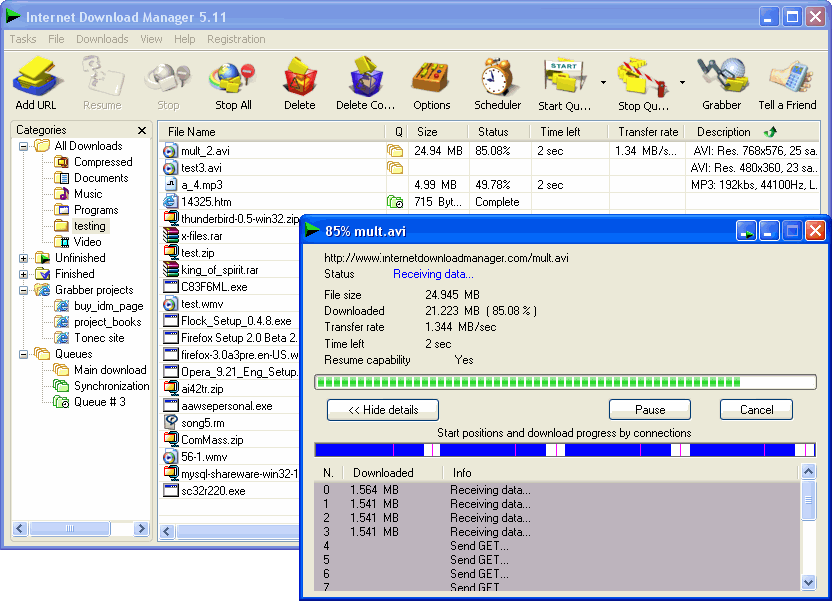
Internet Download Manager v5.15
Internet Download Manager (IDM) is a tool to increase download speeds by up to 5 times, resume and schedule downloads. Comprehensive error recovery and resume capability will restart broken or interrupted downloads due to lost connections, network problems, computer shutdowns, or unexpected power outages. Simple graphic user interface makes IDM user friendly and easy to use.Internet Download Manager has a smart download logic accelerator that features intelligent dynamic file segmentation and safe multipart downloading technology to accelerate your downloads. Unlike other download managers and accelerators Internet Download Manager segments downloaded files dynamically during download process and reuses available connections without additional connect and login stages to achieve best acceleration performance.
Internet Download Manager supports proxy servers, ftp and http protocols, firewalls, redirects, cookies, authorization, MP3 audio and MPEG video content processing. IDM integrates seamlessly into Microsoft Internet Explorer, Netscape, MSN Explorer, AOL, Opera, Mozilla, Mozilla Firefox, Mozilla Firebird, Avant Browser, MyIE2, and all other popular browsers to automatically handle your downloads. You can also drag and drop files, or use Internet Download Manager from command line. Internet Download Manager can dial your modem at the set time, download the files you want, then hang up or even shut down your computer when it's done.
Other features include multilingual support, zip preview, download categories, scheduler pro, sounds on different events, HTTPS support, queue processor, html help and tutorial, enhanced virus protection on download completion, progressive downloading with quotas (useful for connections that use some kind of fair access policy or FAP like Direcway, Direct PC, Hughes, etc.), built-in download accelerator, and many others.
Version 5.15 adds IDM download panel for web-players that can be used to download flash videos from sites like YouTube, MySpaceTV, and Google Videos. It also features complete Vista support, YouTube grabber, redeveloped scheduler, and MMS protocol support. The new version also adds improved integration for IE and IE based browsers, redesigned and enhanced download engine, the unique advanced integration into all latest browsers, improved toolbar, and a wealth of other improvements and new features.

Internet Download Manager supports proxy servers, ftp and http protocols, firewalls, redirects, cookies, authorization, MP3 audio and MPEG video content processing. IDM integrates seamlessly into Microsoft Internet Explorer, Netscape, MSN Explorer, AOL, Opera, Mozilla, Mozilla Firefox, Mozilla Firebird, Avant Browser, MyIE2, and all other popular browsers to automatically handle your downloads. You can also drag and drop files, or use Internet Download Manager from command line. Internet Download Manager can dial your modem at the set time, download the files you want, then hang up or even shut down your computer when it's done.
Other features include multilingual support, zip preview, download categories, scheduler pro, sounds on different events, HTTPS support, queue processor, html help and tutorial, enhanced virus protection on download completion, progressive downloading with quotas (useful for connections that use some kind of fair access policy or FAP like Direcway, Direct PC, Hughes, etc.), built-in download accelerator, and many others.
Version 5.15 adds IDM download panel for web-players that can be used to download flash videos from sites like YouTube, MySpaceTV, and Google Videos. It also features complete Vista support, YouTube grabber, redeveloped scheduler, and MMS protocol support. The new version also adds improved integration for IE and IE based browsers, redesigned and enhanced download engine, the unique advanced integration into all latest browsers, improved toolbar, and a wealth of other improvements and new features.
Subscribe to:
Posts (Atom)